What’s the big idea? Link to heading
So you are learning about Docker, and at some point you hear people talking about optimizing the docker cache. Basically you are ordering your commands in your Dockerfile to ensure that it builds faster and save storage by leveraging how docker decides to compute each ’layer'.
As a diligent engineer, you follow everything to tee, but how do verify what you have written is correct? Is all the feedback you get is the CACHED word when you build the image
[+] Building 0.9s (12/12) FINISHED
=> [internal] load .
=> => transferring context:
=> [internal] load build definition from
=> => transferring dockerfile:
=> [internal] load metadata for docker.io/library/alpine:3.19.
=> [internal] load build
=> => transferring context:
=> [stage-1 1/4] FROM docker.io/library/alpine:3.19.
=> CACHED [start 1/3] COPY 10.txt /output
=> CACHED [start 2/3] COPY 100.txt /output
=> [start 3/3] COPY file2.txt /output
=> CACHED [stage-1 2/4] WORKDIR /
=> [stage-1 3/4] COPY --from=start /output/
=> [stage-1 4/4] COPY file.txt
=> exporting to
=> => exporting
=> => writing image sha256:
=> => naming to docker.io/library/test:v3
I can see that some layers are cached for the image I am building right now, but most of the time I am building multiple versions of the same image.
I did lots of googling, and I can’t seem to find an answer on how I can verify or even inspect for this kind of information, let alone anybody asking this particular question. This unanswered question has bugged me for several years and in 2024, I finally (kind of) cracked it.
The backstory Link to heading
I have been thinking and trying to answer this fo a few years (since 2020), and I had a few false starts.
At first I was looking at the files outputted by docker on my file system and seeing if there were any correlation between the layer data and how they are stitched together; I could not make sense of heads or tails, so I put this thought on hold for a bit.
The next false start was when ChatGPT was made available where I worked (around 2022), and one of my colleagues solved a particularly nasty bug with the help of ChatGPT (after we both bashed our heads against the wall for at least a week). So I took it upon myself to bully ask ChatGPT on how to solve my problem. Unsurprisingly if my googling did not yield any results, aka ChatGPT’s training data, then it was also unhelpful. It just kept insisting it was right and that I should just use the docker history api. So I put this thought on hold again.
The next lightbulb moment I had was after I had finished the Advent of Code 2023 and one of the things that came across my radar was the graphviz software. This is when I knew, come hell or high water, that I would get an answer to this question.
Method-ology Link to heading
I made lots of assumptions, like a lot.
- Get the list of docker image and their tags you want to compare against
- Run
docker history(yes yes ChatGPT was actually correct two years ago) for all tags - Correlate/merge each layer with each other, and create descendants when the image tags diverges from each other
- Make it look pretty with graphviz
This is more of a visualization of the information, rather than a definitive analysis tool.
Demonstration Link to heading
Setup Link to heading
Creating 10mb and 1000mb files
head -c 10485760 /dev/urandom > 10.txt
head -c 104857600 /dev/urandom > 100.txt
Approximate baseline Dockerfile
FROM alpine:3.19.0

WORKDIR /app

COPY 10.txt .
RUN echo "bob" > something.txt # Move this layer down
COPY 100.txt .

RUN rm 10.txt
RUN rm 100.txt
Results Link to heading
The basic premise is to visually proportion (yellow fill) a chain of image layers before a layer has two descendants or terminates.
Legend
- Boxes = docker layers
- Pentagon = docker layer, but has a tag associated with that layer
A concept of ‘subtotal’ is chain of nodes until it terminates or there are more than two children. The total is then is the total size in that chain.
Each node in the graph is a docker layer, the text inside is:
- subtotal ratio: The ratio this layer contributes to a subtotal
- layer size: the size that is reported by
docker history - subtotal size: The total size of the subtotal
- running total: The total size when rolling up all the parent layers (inclusive)
- Tags associated with the layer
- <Command that generated the layer>
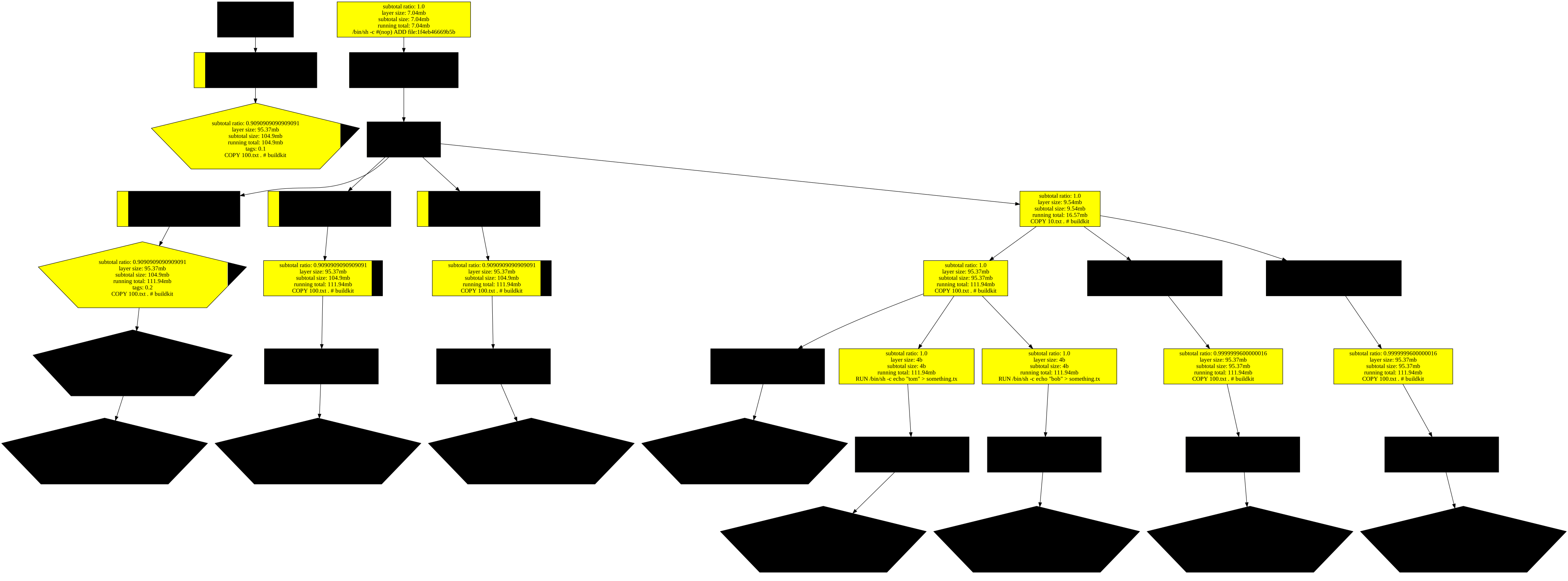
Are you insane? In case you were wondering, I have done front end development before, and nobody likes my design sense, myself included. I can implement a specification, just not come up one for myself.
Assumptions Link to heading
How the ’equivalent’ image layers are matched between tags (a bit of guesswork)
- Condition that layers are the same
- docker layer id matches OR
- The following is the same
- Command for the layer (.created_by)
- Size of the layer (.size)
- Timestamp when the layer was created (.created)
- This assumes the docker history api returns the layers in order that they are built
- I couldn’t find any documentation whether or not this is true
- This assumes that each layer has only one parent
- This assumption breaks when you use the COPY –link option
- Things may incidentally look like they work because of the way graphviz identifies a node and how I generate a node id
What did I learn? Link to heading
Tag 0.1. The scratch image is pretty cool, first and only time I have used it.
Tag 0.2, 0.3, 0.4. The cache is still hit when more commands are added.
Tags 0.9 and 0.10. You can see that a change in the echo command cause the chain to split, and the copying of 100mb file (which did not change contents) created large docker layers to be unnecessarily duplicated.
Tags 0.11 and 0.12. With the ‘bug’ corrected, the echo command layer is now the largest, but it is only 4bytes, so job well done.
Notice how the removal (rm 10.txt) of the files does not reduce the total image size. This is why the commands are chained to remove temporary files.
Example
RUN apt-get update && apt-get install -y --no-install-recommends \
  bzr \
  cvs \
  git \
  mercurial \
  subversion \
  && rm -rf /var/lib/apt/lists/*
More questions Link to heading
What about my CI tooling? How does caching apply there? Link to heading
I had the same question, the caching only works in your local instance of the docker daemon, and my CI tooling runs on multiple nodes with different daemons, so how is caching preserved?
The docker caching docs has you covered.
Is this the only way to verify this? Link to heading
I do not think it is. There was another way that I thought, it was by proxy of storage use.
- The premise is to host your own registry example
- Volume mount the file system
- this is for ease for the next steps, you can always exec into the registry container after spinning it up
- Build your image (or pull it)
- Re-tag your image and push image to the self hosted registry
- Run the disk usage (
du -hs) command and verify the size is what you were expecting - Push the next tag to the self hosted registry, does this match your expectation from theoretical knowledge?
I did explore this a bit, but since it did not show the correlation of the docker layers and the size it contributed I did not delve into it too far. I much preferred what I landed with here.
The closest alternate tool I have found is dive but that was more at exploring the docker layer and investigating individual files. I wanted more of a macro view across different docker images / tags.
Caveat Link to heading
It’s worth noting that caching is not always desired.
For example, for a production image you may be running the command apt-get update && apt-get upgrade to ensure you have the latest versions of libraries (to get security off your back about vulnerabilities showing up on their report), in this particular case, docker caching may be undesirable.
However, if you’re building your feature branch for a pull request, and just need the red green checkmark to go appear faster, then hitting your docker cache may be preferred. Side note: I have no idea why, but caching scala build tool in github actions takes forever to load, so much so that it’s actually faster re-downloading all the dependencies.
Linky for the project Link to heading
https://github.com/MrDopey/docker-size-visualization/tree/master